Introduction
In today’s connected world, it is important to manage network connections well. Whether you are a system administrator or just a regular user, having a reliable command-line tool to handle networking tasks can make your work much easier. In the world of Linux networking, both system administrators and users need to be able to manage network connections well. The nmcli command, which stands for Network Manager Command-Line Interface, is a powerful tool they can use. In this article, we’ll look at the nmcli command and its different features. We’ll show you how to use it and get the most out of it.
What is nmcli?
The NetworkManager Command-Line Interface, also known as nmcli, is a robust application for the command line that gives users the ability to control and manage network connections on Linux-based computers. The nmcli makes it simple to interface with NetworkManager, a service that is responsible for managing connections to various networks. It is compatible with the vast majority of Linux distributions, including Ubuntu, Red Hat, and CentOS. It comes with a comprehensive collection of commands that can be used to build, change, and delete network connections, as well as check the state of the network and fix problems that are related to it.
Installing NetworkManager and nmcli
It is necessary to have NetworkManager installed on your computer in order to use the nmcli command line interface. The network management application NetworkManager is typically pre-installed on current Linux distributions. However, if not already installed, it is very simple to install on any Linux distribution by using the available package manager or the online package repositories. Launch a terminal and execute the following command to install nmcli. The exact syntax you use will vary based on the Linux distribution you use and the package manager you employ.
For RHEL/CentOS:
$ sudo yum install NetworkManagerFor Ubuntu:
$ sudo apt install network-managerAfter installation, start the NetworkManager service and ensure that it is enabled to auto start at boot time.
$sudo systemctl start NetworkManager
$ sudo systemctl enable NetworkManager
You can execute the following commands to determine whether or not NetworkManager is running and enabled on your system.
$ sudo systemctl status NetworkManager
$ sudo nmcli -t -f RUNNING general
Usage of nmcli
Creating, displaying, editing, deleting, activating, and deactivating network connections, as well as controlling and displaying the status of network devices, are all possible tasks that may be accomplished with the help of nmcli. We use the syntax below, executing it with either root or sudo privileges.
$ nmcli [options] [section] [action]The command’s functionality can be manipulated and controlled using optional parameters known as options. Sections refer to the various parameters that the command can use to perform desired operations, referred to as ‘actions’, such as displaying information, generating and managing configurations, changing device and connection statuses, and more.
- help: Used to get help about the options and parameters of nmcli.
- general: Used to find out the status of the network manager and how it is set up globally.
- networking: This is what you use to start, stop, and manage the network manager.
- radio: Used for managing wireless devices and protocols.
- connection: Used to keep track of connections-Network configurations.
- device: Used to manage network devices.
- agent: Used to set up and manage different security settings.
- monitor: Used to track changes on a network.
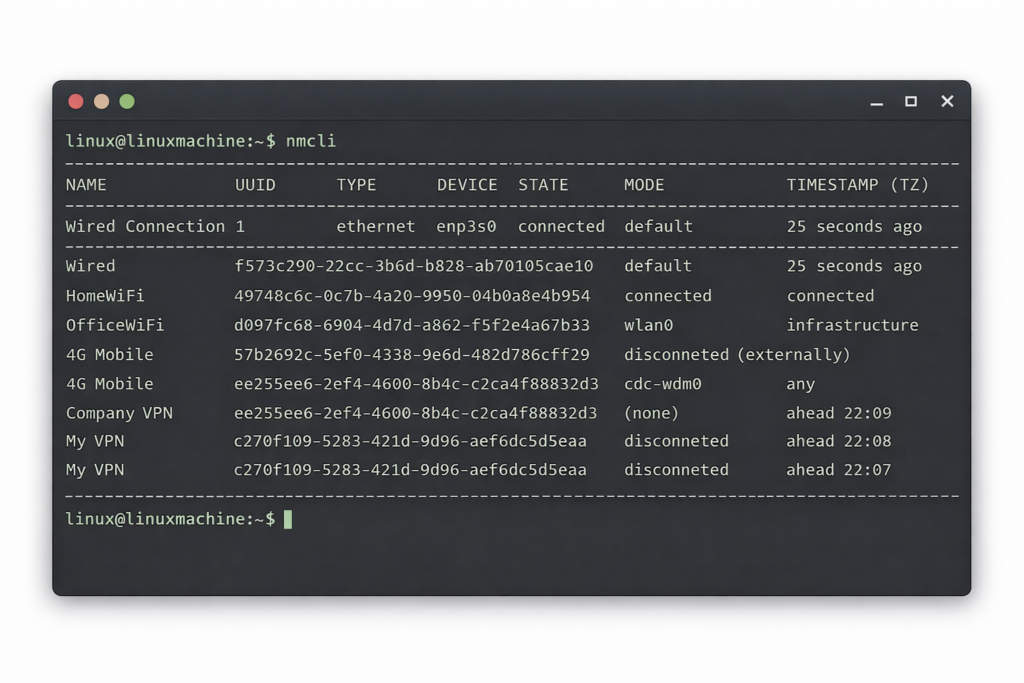
Launching a terminal and entering the command nmcli gives you access to the nmcli command line interface. This will bring up the nmcli prompt, at which point you can enter commands and observe the results of those commands.
$ sudo nmcliAlternatively, you can execute the nmcli command using the previously described options, section, and action on the command prompt. This will allow you to complete the necessary tasks.
Let’s look at how to use nmcli commands to do some common and useful network management and configuration tasks.
Checking Network Status
You can run the following command to check the overall status of the network, which will include information about the devices and any current connections.
$ sudo nmcli general statusConclusion
The nmcli command-line interface is a powerful way for Linux systems to manage network connections. It makes it easy to set up, change, and troubleshoot network configurations. In this article, we discussed the basics of nmcli, such as how to install it, see connection details, make and change connections, connect and disconnect, manage wireless networks, handle VPN connections, and fix common network problems. With these skills, you can use the nmcli command-line interface to navigate and also manage network connections with ease. Explore the nmcli documentation to find out about more advanced options and use your Linux system’s network management.
Don’t forget that practice makes perfect. Try out nmcli commands in a test environment and slowly add them to the network administration tasks you do every day. Happy networking!